
Create and Edit Users
Admins and Managers can create users in the TabaPay Portal. Use the Users page to invite a new User, assign access, or update another user’s profile and permissions.
Use cases
- Invite a new employee or team member.
- Give a user access that matches their job responsibilities.
- Update a user’s role, MFA settings, or permissions after an organizational change.
Create a User
Ensure the Right Client AccountIf you have multiple ClientIDs you may have different client accounts. To switch to a different client account, click on the desired account name on the top left on the side panel.
- On the left panel under My Organization, select Users.
- on the top right, select Add User.
Personal Info, Role & MFA
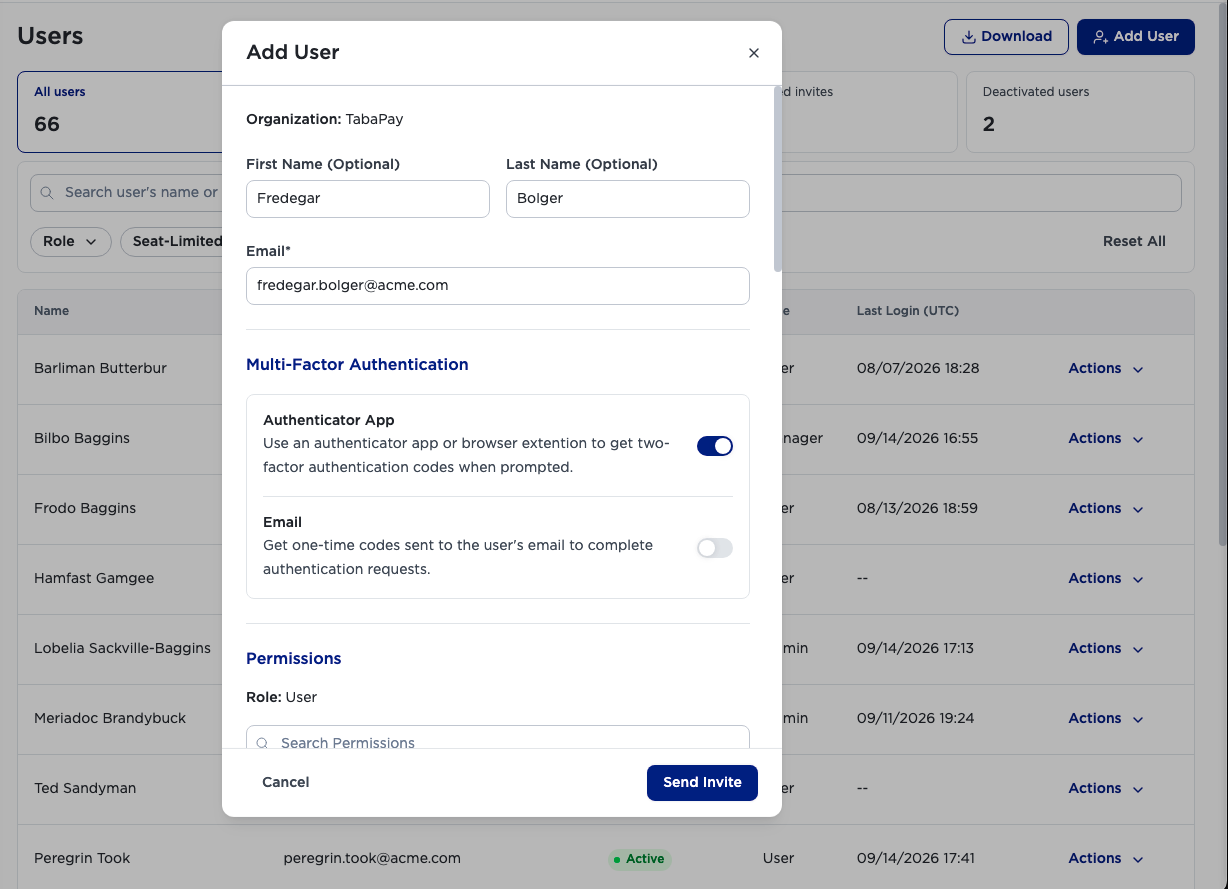
- Enter the user’s First Name, Last Name, and Email.
- If you are an admin you can select a Role: Admin, Manager, or User.
If you are a Manager, the default role will be a User. - Switch on least one MFA method: Authenticator App, or Email.
Permissions
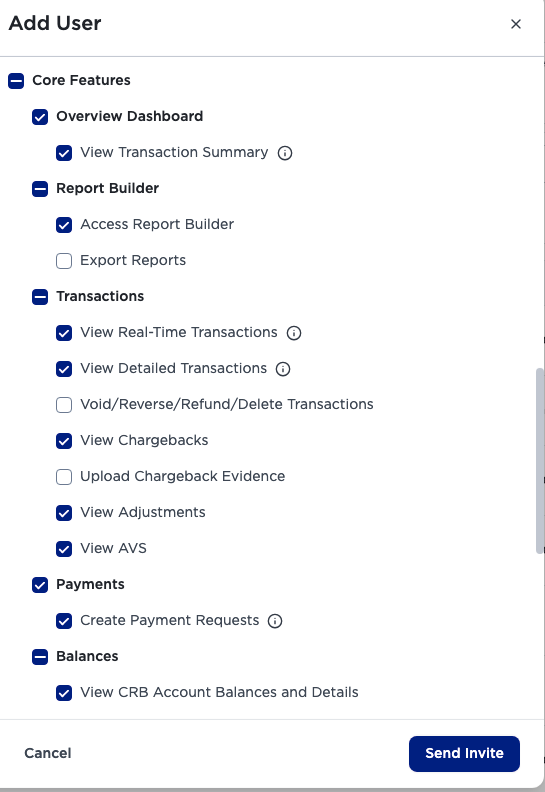
For desciptions of the roles in the permissions section, refer to Roles and Permissions.
- Select at least one feature permission by marking the top level or individual checkboxes.
- Review the permissions roles you are assigning.
- Select Send Invite.
Who Can Create Each Role?
Only Admins can select between User Roles. Managers can create only Users. Users will not be able to see the User section.
| Your role | Users you can create |
|---|---|
| Admin | Admins, Managers, or Users |
| Manager | Only Users |
| User | Cannot create Users |
Edit a User
- Log in to the TabaPay Portal
- On the left panel under My Organization, select Users.
- To find the user you want to update, use the search or filter features as shown in Manage Users.
- On the right side of the user row, select Actions
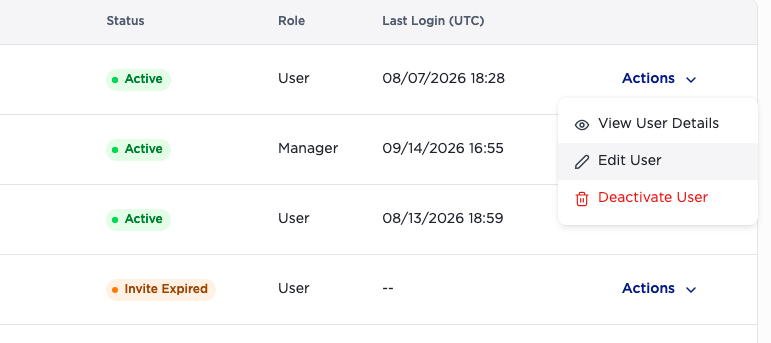
- Select Edit User.
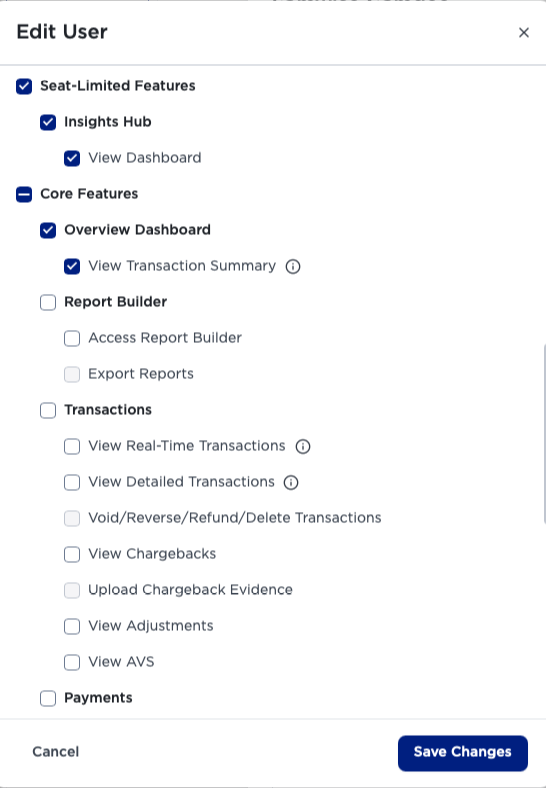
- Update the available profile, role, MFA, or permission fields.
- Select Save Changes.
Note: You cannot use the Users page to edit your own user information. To update your own profile and security settings, use My Account.
Role-based Editing Rules
- Only Admins can promote another user to Admin or Manager.
- Managers cannot edit Admins.
- Managers cannot edit another Manager.
- Manager can edit Users.
- Managers cannot assign roles or permissions to themselves.
- The last remaining active Admin cannot be downgraded or deactivated.
Updated 20 days ago
More Resources
Did this page help you?