
Exporting in Report Builder
Download a CSV version of your Report Builder results for offline analysis and record keeping.
After you export a report, the report is processed in the background and added to the Downloadable Reports page when it is ready.
Use cases
Use report export when you want to:
- Analyze your report in Excel or another spreadsheet application.
- Share report results with your team.
- Save a copy of report data for reconciliation or auditing.
Before you begin
Before exporting a report:
- You must have the Export Report permission.
- Your report must be generated successfully within Report Builder.
- Reports are exported as CSV files.
- Review the Export Limits below.
How to Export a report
To export a report:
- Log in to the TabaPay Portal.
- Go to Report Builder.
- Build and generate your report.
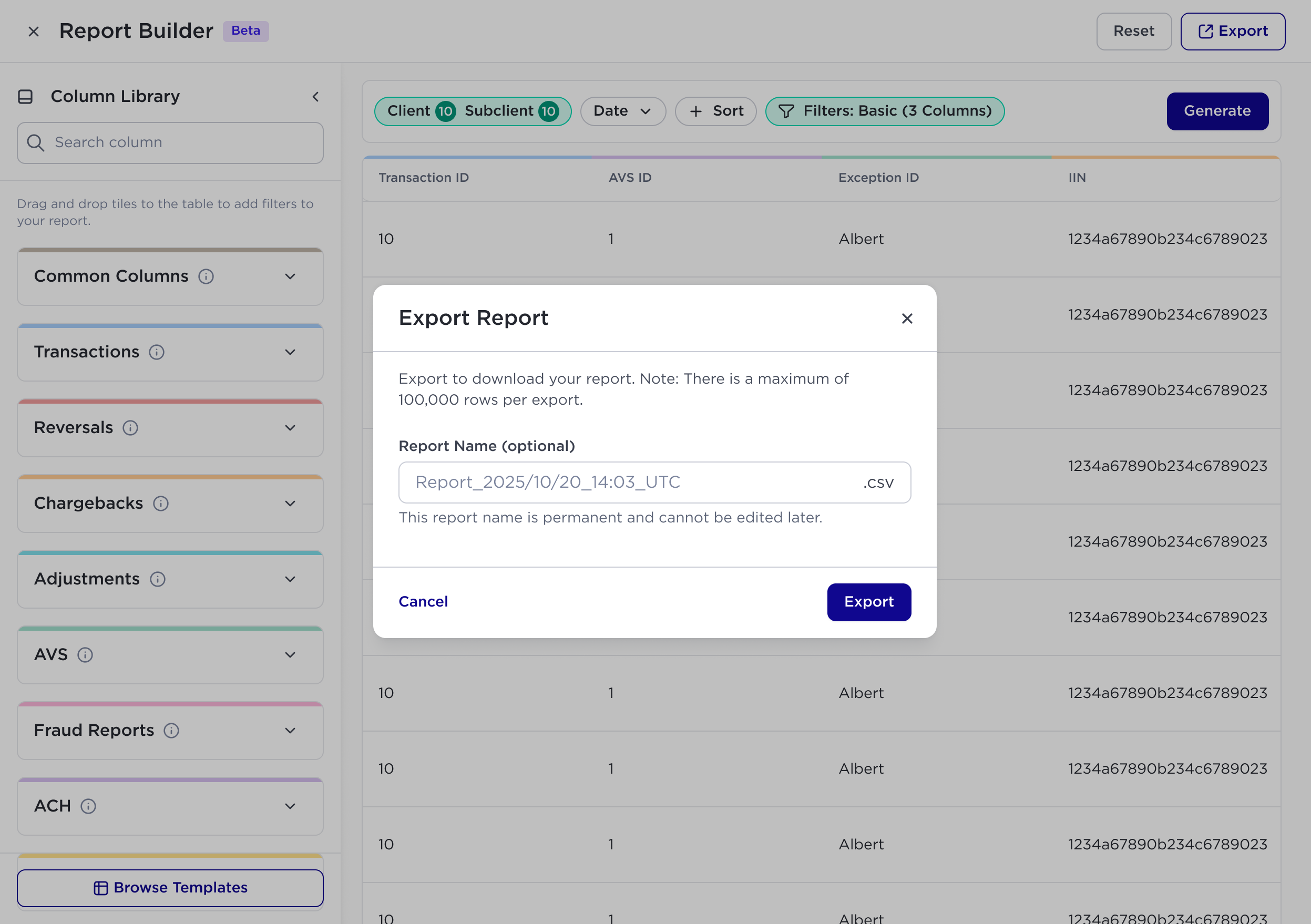
- Click Export.
- (Optional) Enter a report name.
- Click Export to start the export.
- When your report is ready, TabaPay sends an email notification to let you know the export has finished. The email includes a link back to the TabaPay Portal. Use the link to return to the Portal and download your report from the Downloadable Reports page.
Export limits
- You can export up to 100,000 rows per report.
- You can store up to 100 downloadable reports.
- If you reach the report limit, delete older reports before exporting a new one.
Name a report
Naming your report helps you identify it later.
- Report names are optional.
- If you do not enter a name, the Portal automatically generates one using the following format:
- Report_MM-DD-YYYY_HH-MM
- Report names can contain up to 30 characters.
- Some special characters are not supported. If your report name contains an unsupported character, the Portal displays an error message.
View downloadable reports
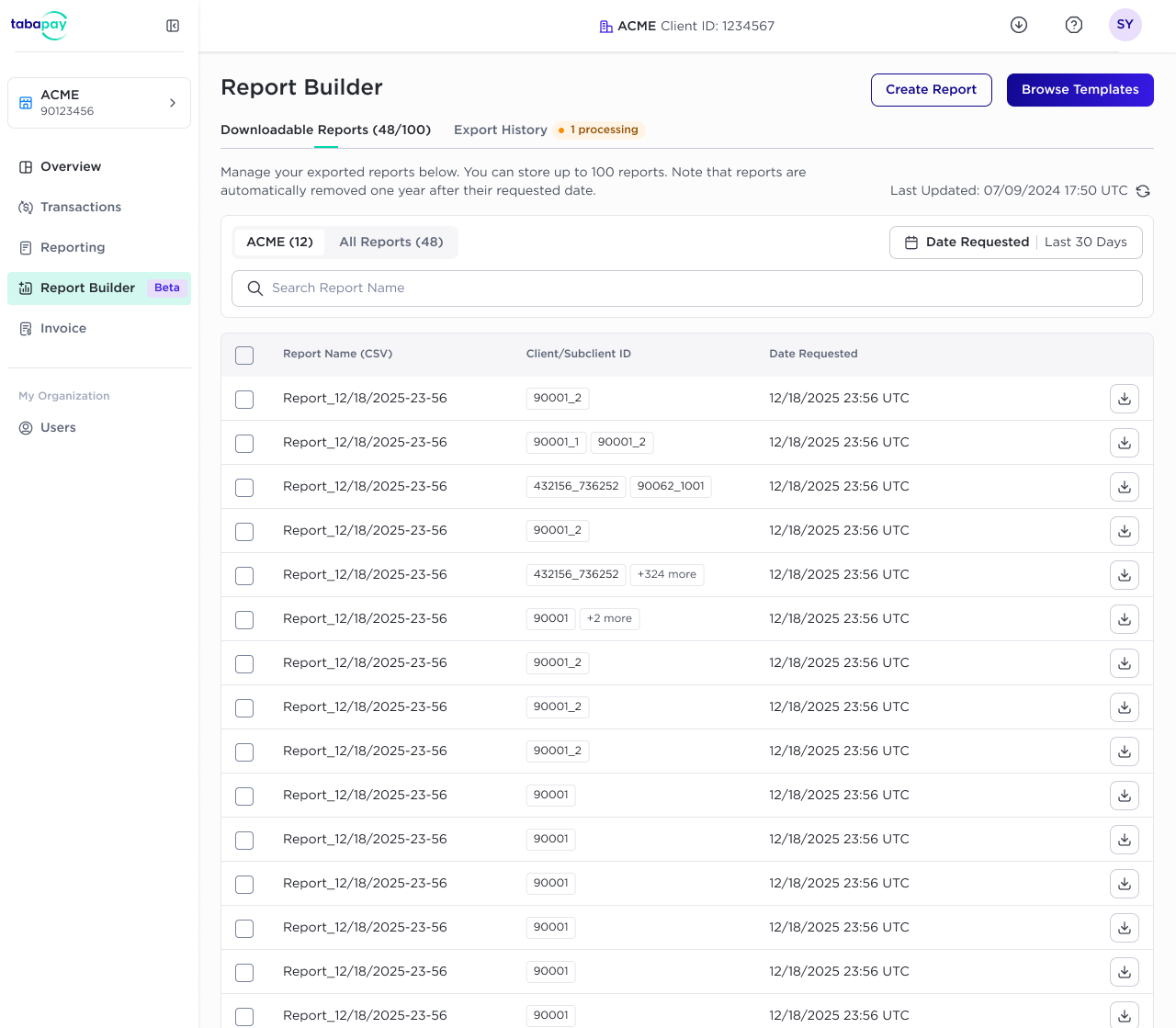
The Downloadable Reports page lists reports that are available for download.
For each report, you can view:
- Report name
- Client or SubClient information (based on your access level)
- Requested date and time (in UTC)
Only reports that you created in the Report Builder are displayed. Reports are listed from newest to oldest.
Download a report
To download a completed report:
- Go to Downloadable Reports.
- Find the report you want.
- Click Download.
The report downloads as a CSV file.
Delete reports
Delete reports you no longer need to free up storage.
To delete reports:
- Go to Downloadable Reports.
- Select one or more reports.
- Click Delete.
- Confirm the deletion.
After deleting reports, you can export additional reports.
FAQs
Yes. Exported reports follow the same data masking permissions that apply in the TabaPay Portal. If you do not have permission to view certain data, that data remains masked in the exported file.
2. How long does it take to prepare my report?
Report preparation time depends on the size of your report. When your report is ready, you'll receive an email notification with a link back to the TabaPay Portal, where you can download the report from the Downloadable Reports page.
Updated 3 months ago