
Report Builder
The report builder allows you to compile your own report view through set templates or customization and download as a .CSV file (Coming Soon) from the TabaPay Portal.
Request to enable at TabaPay Support or [email protected].
Use Cases
- Ad hoc transaction reporting: Quickly build a report to look into any activity on any given day.
- Transaction Reconciliation: Look back on any transactions to double check and compare with exceptions and adjustments made in since 2023.
How to use the Report Builder
- Log in to the TabaPay Portal, and select Report Builder (Beta).
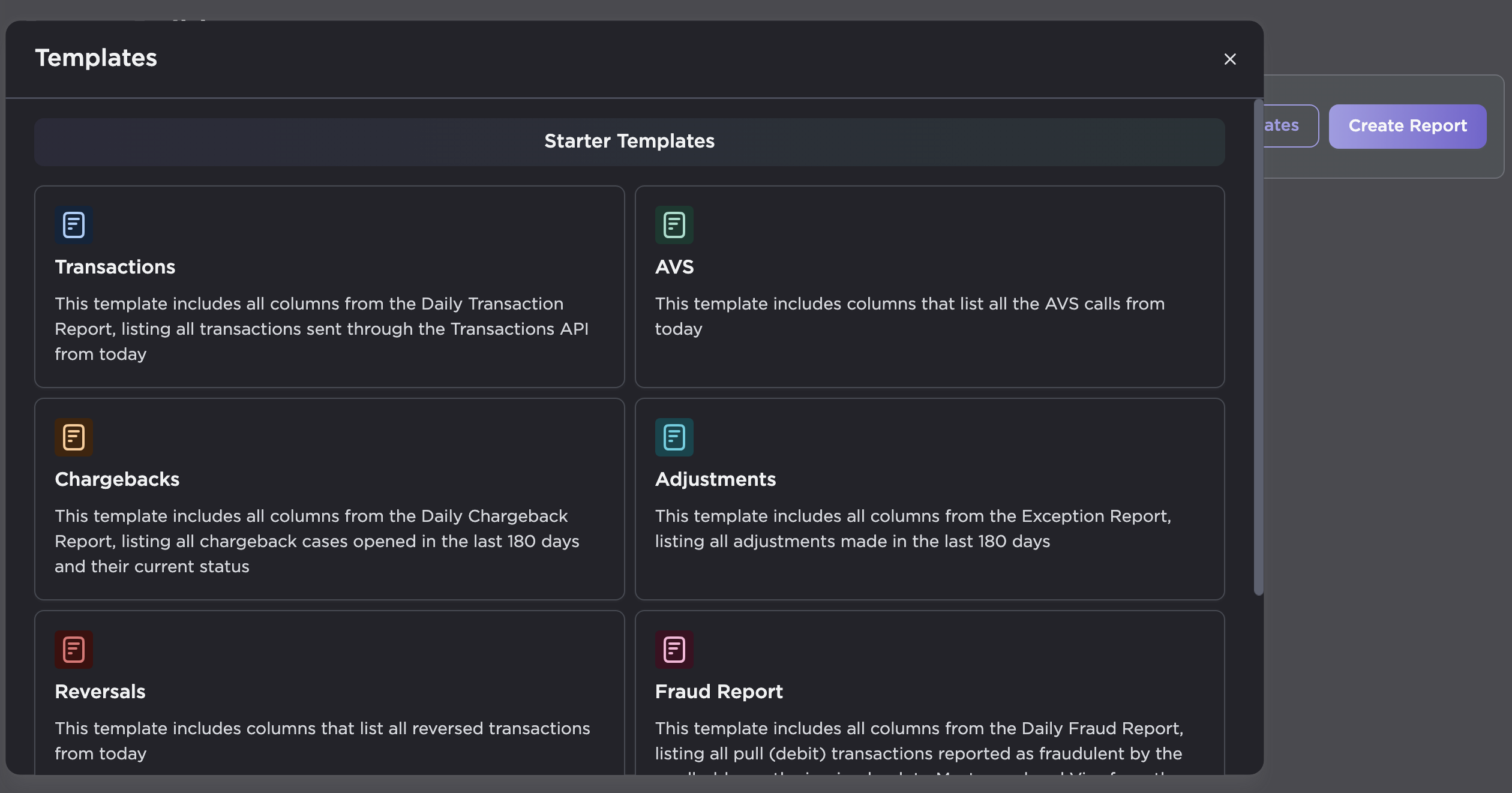
- To find any Starter Template, click the Browse Templates button or else select Create Report at the right side of the screen.
Report Templates
-
Transactions: Daily Transaction Report columns, including all transaction sent through Create Transaction API.
-
Chargebacks: Daily Chargeback Report columns, all chargeback cases opened in the last 180 days.
-
Reversals: Columns that list all reversed transactions from the day
-
ACH: Columns that list all ACH transactions from the day
-
AVS: Columns that list all AVS calls from the last day
-
Adjustments: Exception Report columns, and all adjustments made in the last 180 days.
-
Fraud Report: Daily Fraud Report columns, and all pull transitions reported as fraudulent by the accountholder.
-
ACH Returns: Columns that list all returned ACH transactions from the day
Note: For the table refresh frequency, refer to the Data Loading Frequency section below.
Select Your Client
- The Select Clients dialog box appears.
- Select your desired Client Name and ClientID to include in the report data.
Note: Some clients may have multiple SubClientIDs that may include different network data.
- Click Save and Continue.
Build Your Columns
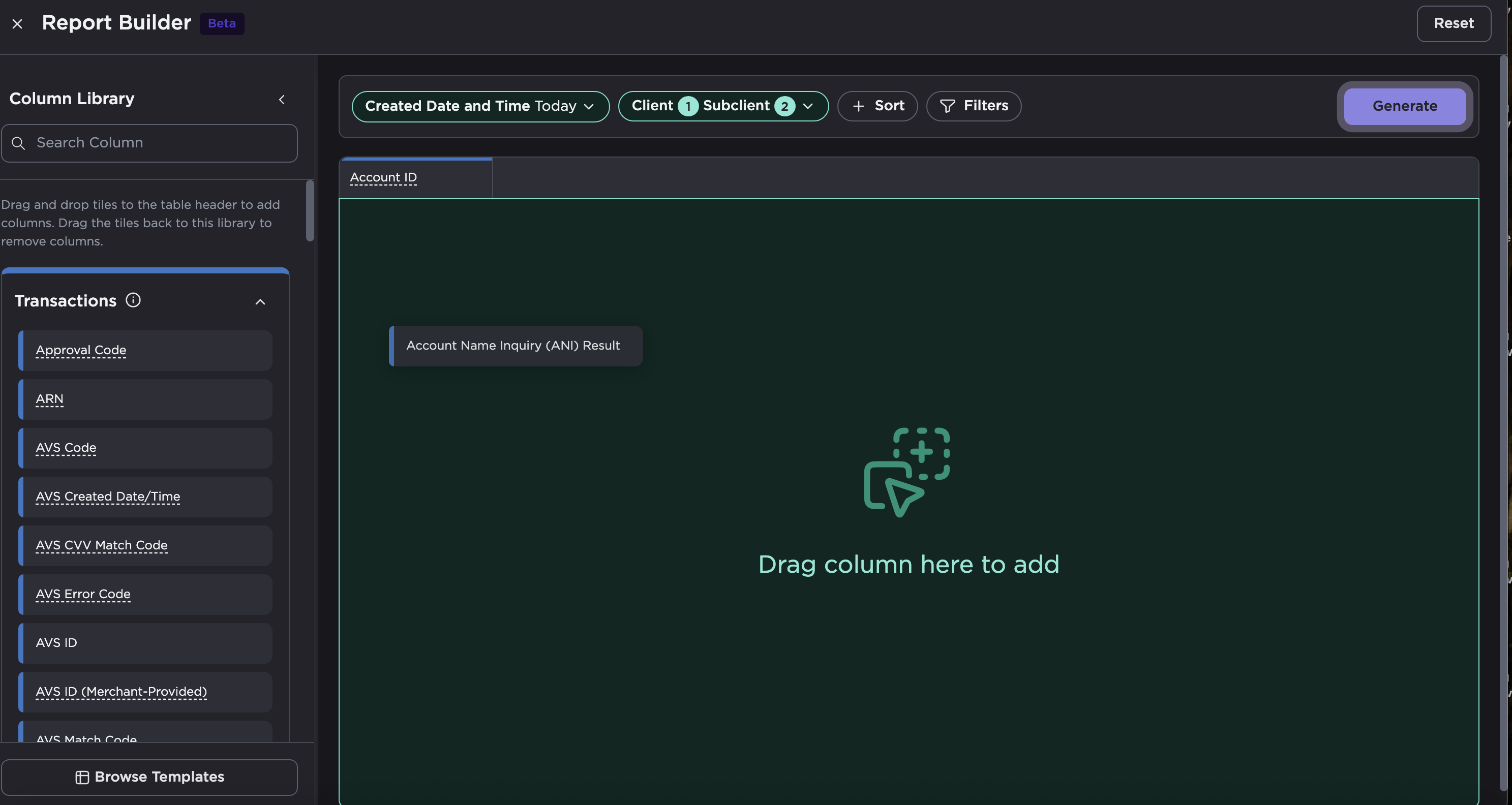
- To build your columns, search for a column, or open the any section to find a desired column.
- Drag and drop each column header into the table area.
Building Out Your Headers
As you drag and drop more columns, the available header options will update to reflect topics compatible to your selection.
Remove Columns
- If you want to remove any columns, hover over any table header and click the red X to the right of the column header.
Customize Your Report
- To select your time frame, select relevant Date and Time, and choose your time range.
- To sort your columns according to the sort order options, select Sort and then the column header, and your custom sort order.
- String column → alphabetical, A-Z / Z-A
- Numeric column → Largest to Smallest / Smallest to Largest
- Date column → Oldest to Newest / Newest to Oldest
Filter Your Report
- Select Filters.
- The options appear for Basic or Advanced filtering.
Basic
- With Basic pre-selected, click +Add Filter.
- Select the Column for your desired area of filtering.
- In the next dropdown, select your conditions of filtering.
- Type in the value that applies to your condition.
Advanced
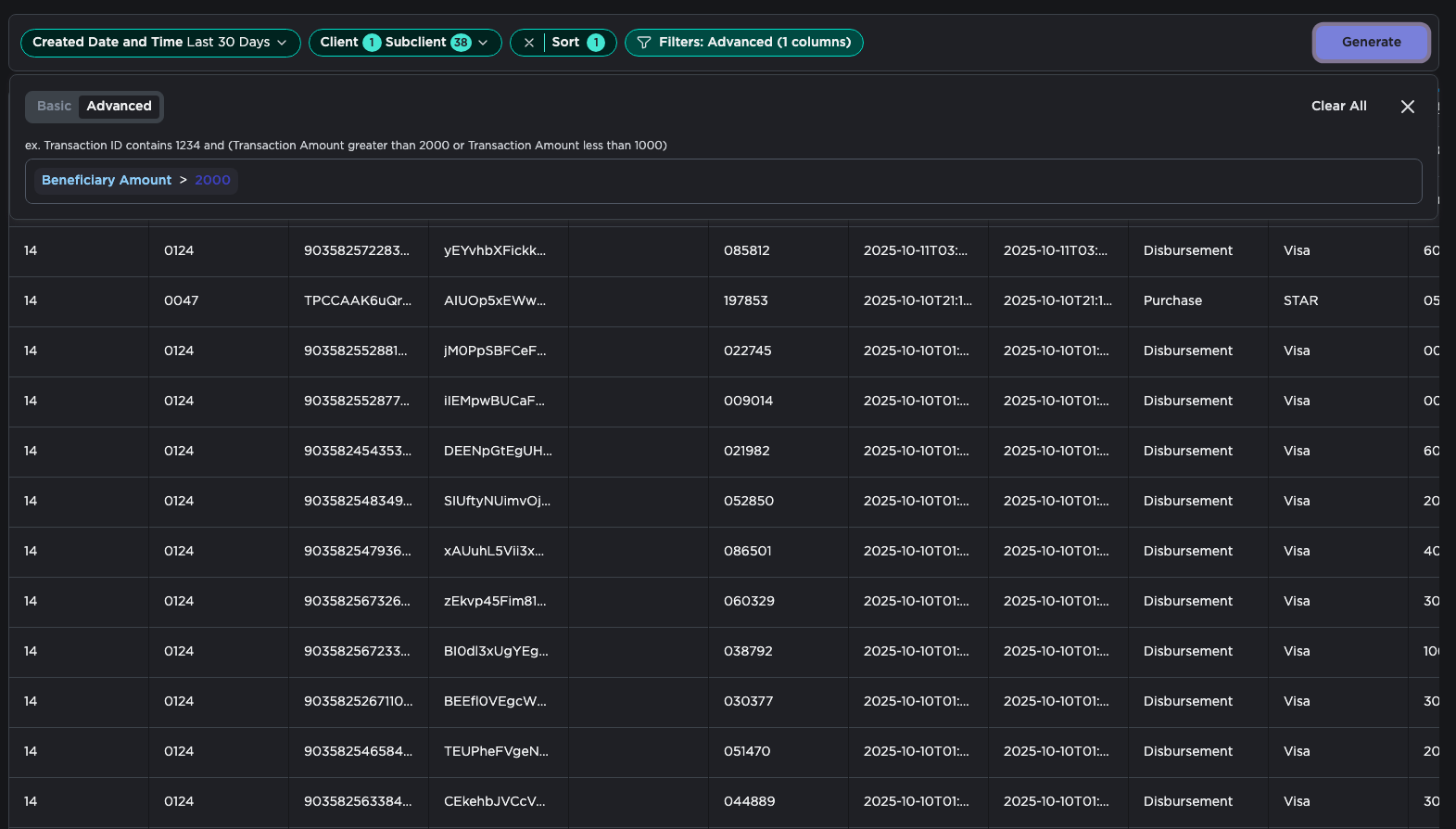
Select your column., condition, and value
When you are typing in the advanced filter you do need to select the item you type in by hitting enter.
- Type in your column or field.
- Type in the condition.
- Type in your value and to select the value, hit enter. When a value is selected, the value should turn to a static colored font in the example.
Note: To select fields with no value, leave the space empty and hit enter.
Finalize Your Report
- To finalize your custom report, click Generate at the right of the report.
Note: If you select reset, a confirmation dialogue box will appear before resetting your selection.
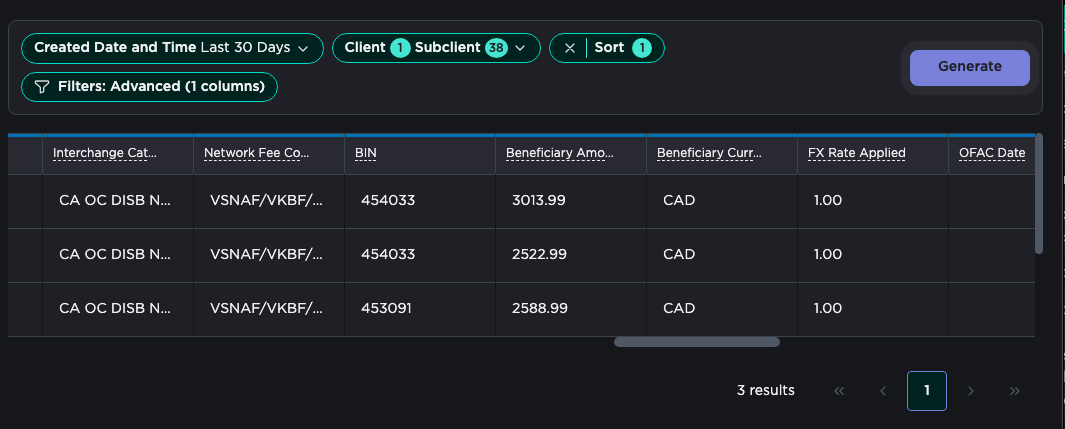
Table Data Loading Frequency
- Transactions: every 15 minutes (it can take up to 35 mins during peak hours)
- Chargeback: daily
- Adjustment: daily
- Reversals: every 15 minutes (it can take up to 35 mins during peak hours)
- ACH: dally
- ACH: returns: daily
- AVS: every 15 minutes
Types of Transaction
Each table/category contains:
- Transactions: Card, RTP, ACH, RPPS API transactions
- Reversal: Reversed card transactions
- Chargeback: All chargeback record
- Adjustment: Card, ACH API, and RPPS API return transactions
- AVS: all standalone AVS calls
- Fraud report: Pull/debit transactions reported as fraudulent by the cardholder's bank.
- ACH: file-based, ACH API, file-based RPPS transactions
- ACH returns: file-based ACH and RPPS return transactions
Updated 3 months ago